Straight there
One press and the Space is on screen. Full screen apps are reached like desktops, with nothing sliding past.
One key. Your Mac is already there.
Free, with every hotkey. Pro is $19.99, once.
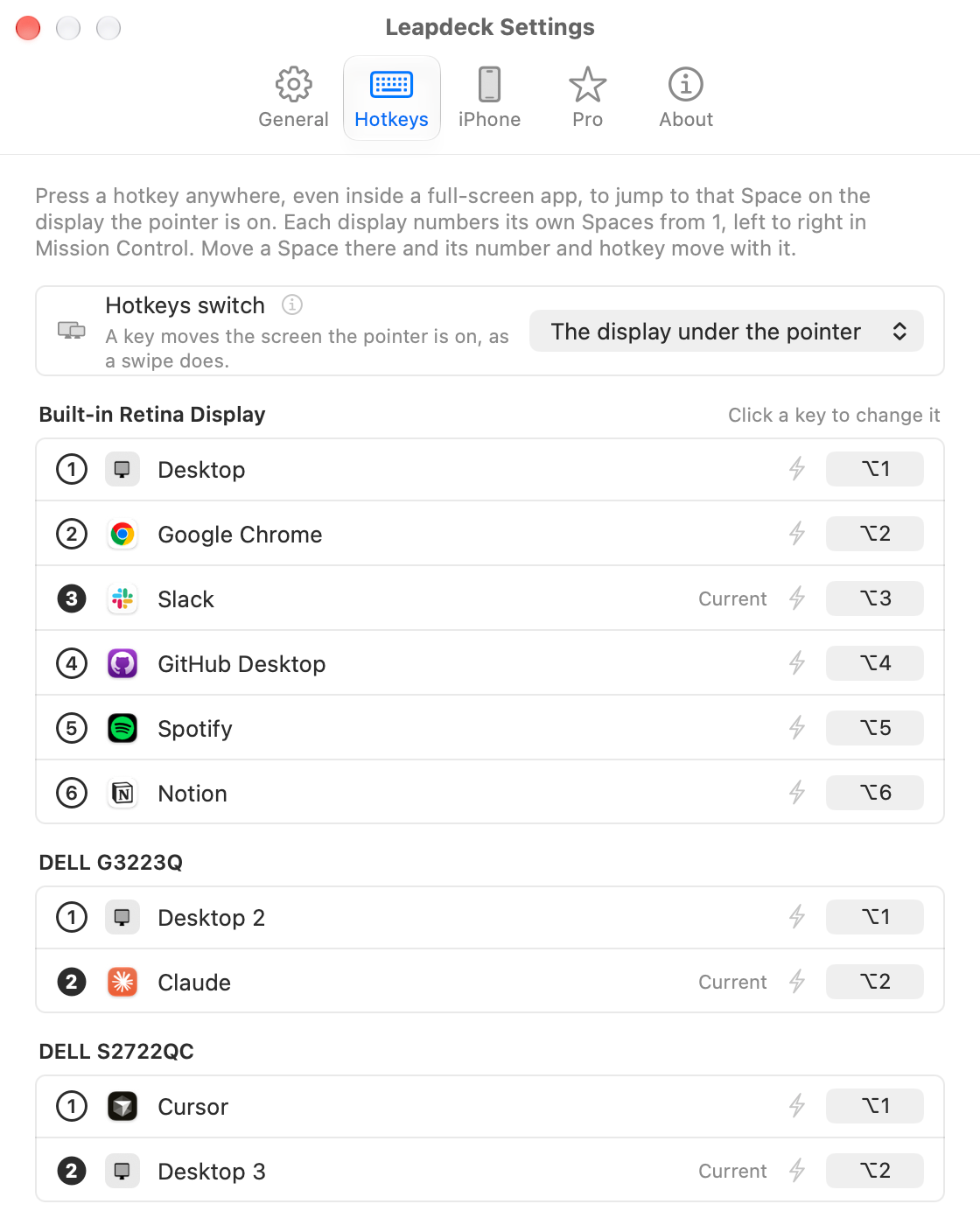
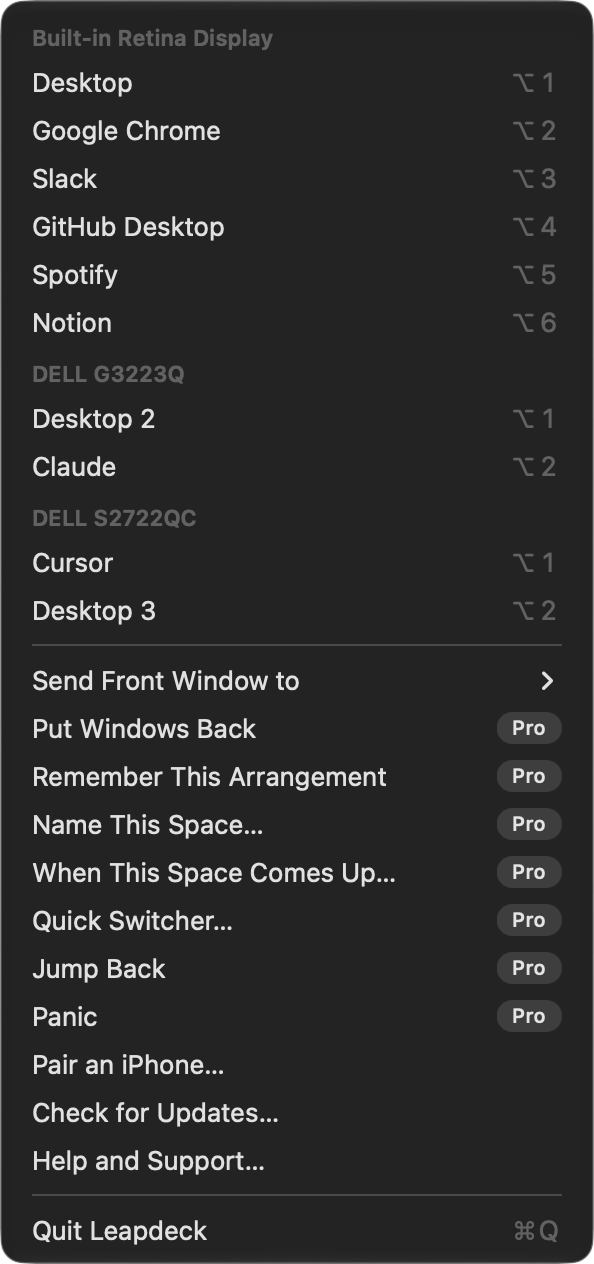
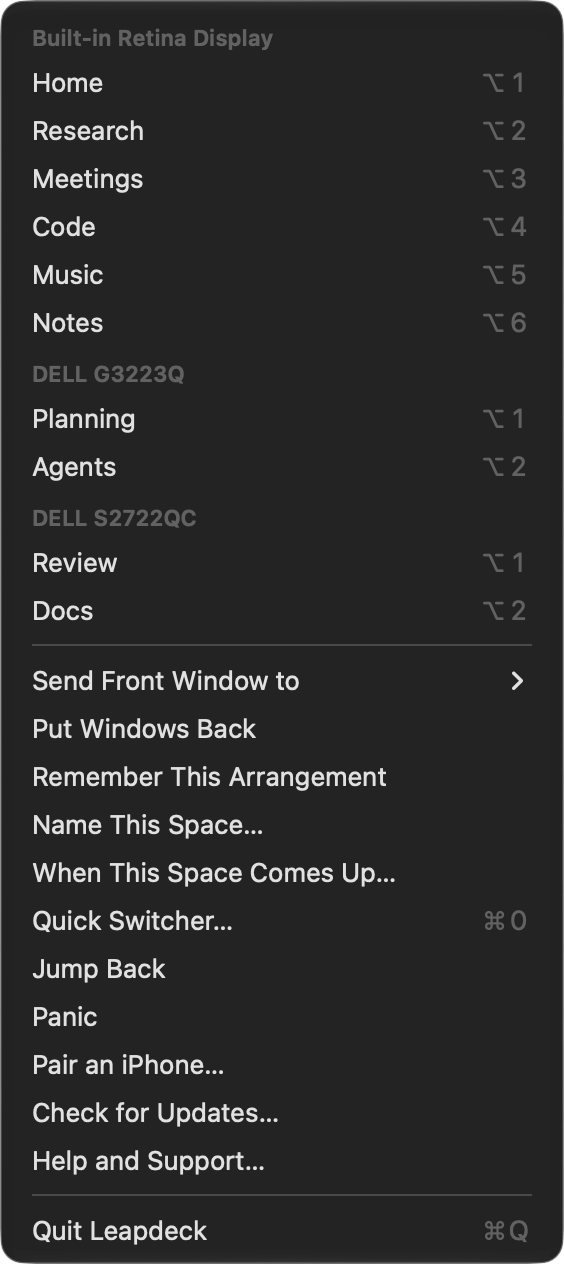
macOS calls them Spaces; they are the Mac's virtual desktops. Click a number, or press its hotkey: Option and that number on a U.S. keyboard. Full screen apps included.
Measured on macOS 27. Where macOS can't move a window, Leapdeck says so.
Hotkeys switch the display under the pointer, or always the main display, or one monitor you choose in Settings.
On a display without a notch, the strip floats under the menu bar.
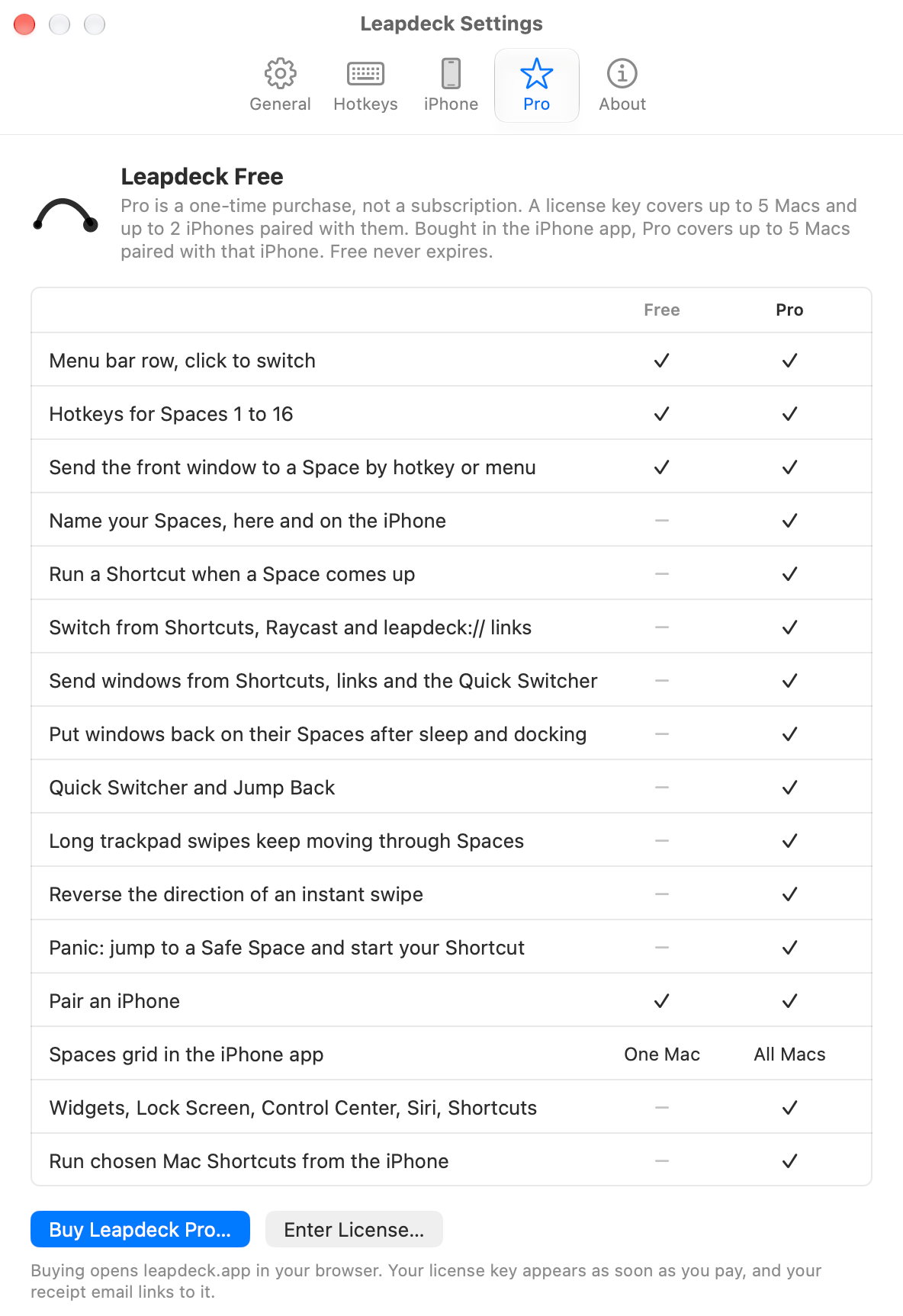
24 things, and none of them is a trial. Nothing that is free today moves into Pro.
One press and the Space is on screen. Full screen apps are reached like desktops, with nothing sliding past.
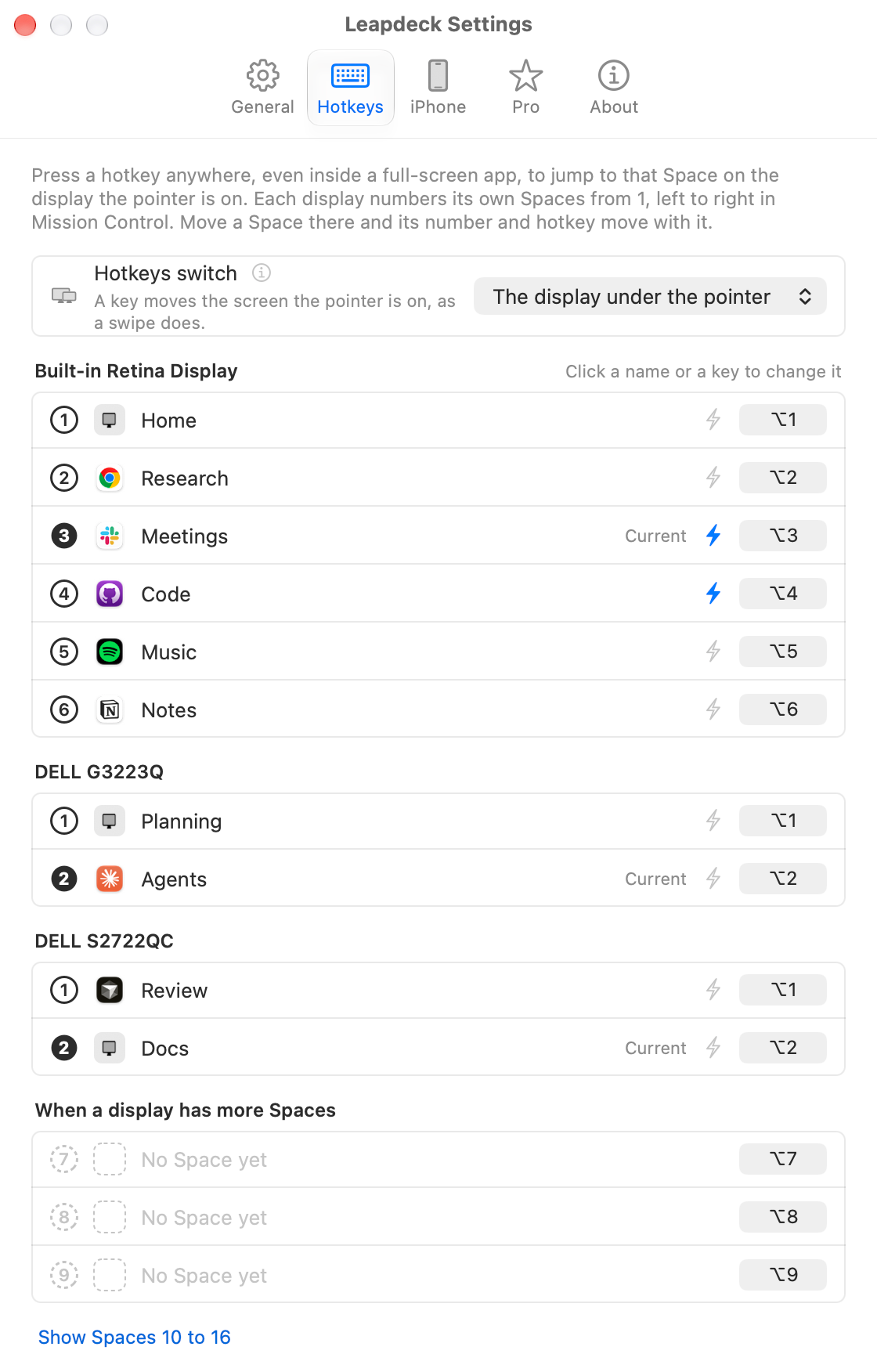
Up to nine numbered circles, the current one filled. Click one to jump, hover for its name. Or hide the row and run on hotkeys alone.
Every Space on every display, with its hotkey, including the ones past the row's nine.
Option and a number, from anywhere, even inside a full screen app. Record any shortcut you like instead, and set your own for Spaces 10 to 16.
Optional keys for the Space beside the one you are on. Quick presses add up, and the ends stop or wrap around, as you choose.
Turn on the send keys and Shift with a Space's hotkey sends the window in front there. The menu has Send Front Window to. Go with it, or stay.
Hold a window by its title bar and press a hotkey. The window comes with you to that desktop.
Slot 3 is the third Space in the order you see there. Drag one and its number and hotkey move with it.
A hotkey pressed in Mission Control picks that Space, ready for Escape or a click. In App Exposé, Leapdeck closes it and goes there. Measured on macOS 27.
Each display gets its own numbers and its own hotkeys, shown in the menu bar or as a pill on its screen.
Hotkeys switch the display under the pointer, the main display or one monitor you pick. Pick the main one and Option and 2 goes to its second Space wherever you point.
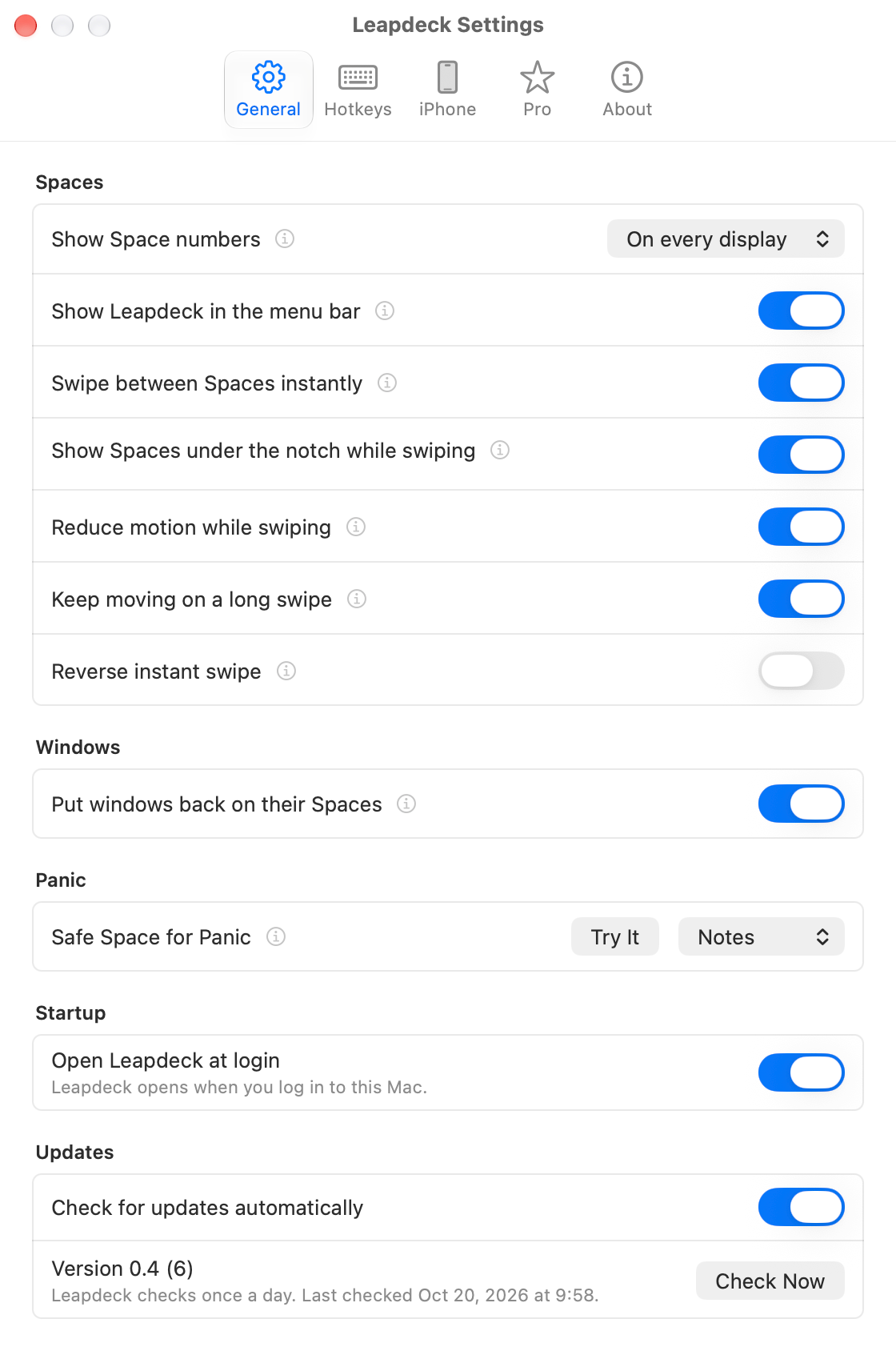
Make a trackpad swipe jump instead of slide, with the fingers you set in Trackpad. Off until you turn it on.
While an instant swipe is under way, a strip under the notch shows each Space with its apps and its name, and rings the one you are heading to.
Only the ring under the notch moves with your fingers. Half a second after it rests, with your fingers up, the screen changes once.
Where Option and a number types a character, the right Option key keeps typing and the left one switches Spaces.
While an app holds secure keyboard entry, as Terminal can, no hotkey reaches Leapdeck. It names that app, and clicks, swipes and your iPhone still switch.
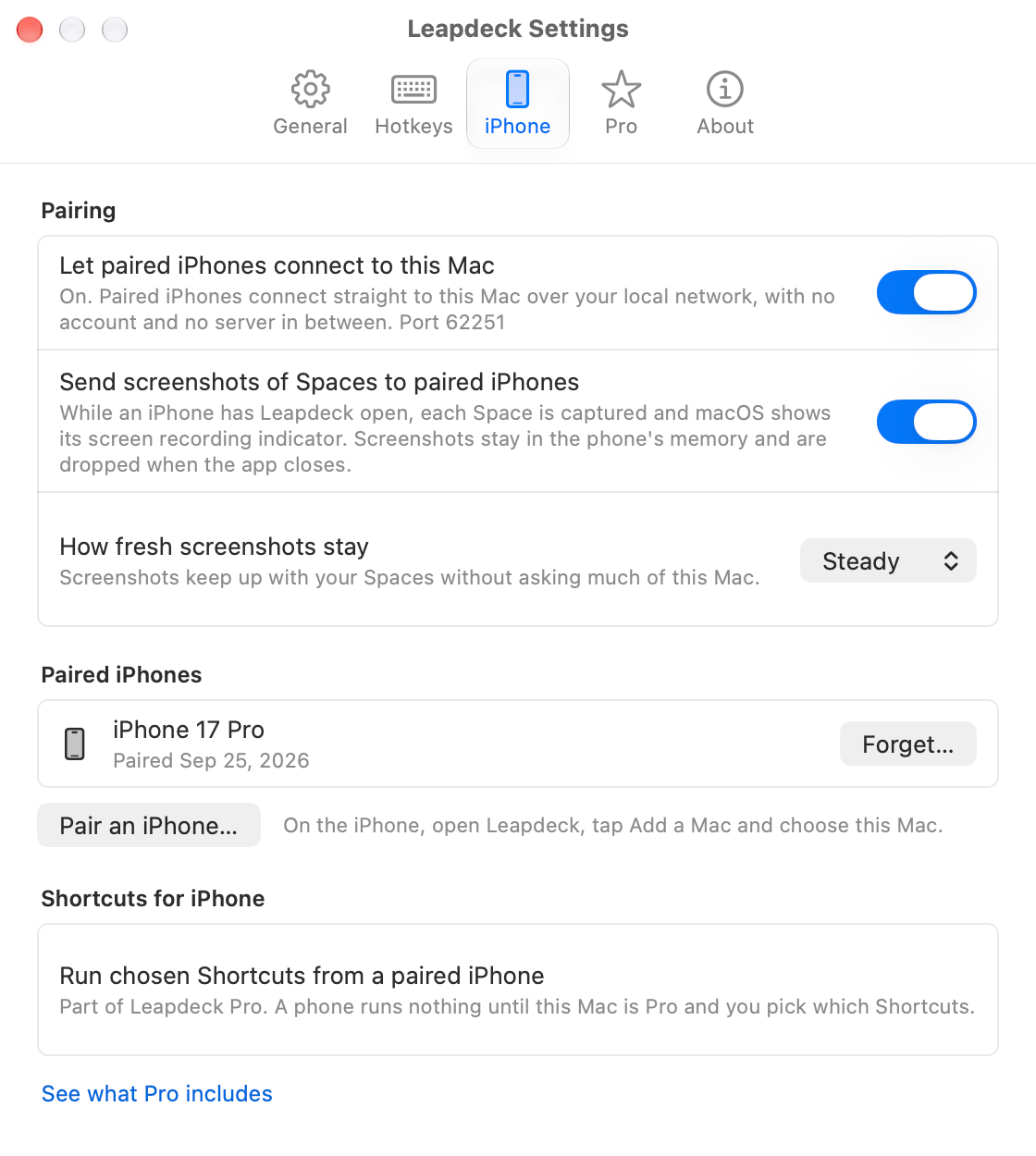
A six digit code or one click through Handoff. The phone service stays off until you choose Pair an iPhone.
Optional. Relaxed, Steady or Lively, and only while a phone is looking. macOS shows its recording light while it captures.
Warns when macOS rearranges Spaces by recent use or hides the menu bar item, and links straight to the setting.
Point at the i beside a setting to read what it does. In General, most of them also show a small picture of it at work.
One switch in Settings. Open Leapdeck again at any time and it brings up Settings.
Signed, notarized and checked once a day. When macOS changes under it, the fix arrives the same way.
Switching needs one permission, Accessibility. System Integrity Protection stays on, and nothing is added to the Dock.
The row names itself and the Space each display is showing.
Name your Spaces, have each one start a Shortcut of yours when you arrive, press Command and 0 to type where you want to go, jump back to the one you just left, have your windows put back on their Spaces after a sleep, drive Leapdeck from Raycast, Alfred and Shortcuts, and keep moving on a long swipe.
The same Spaces, as a deck. Paired once, over your own network.
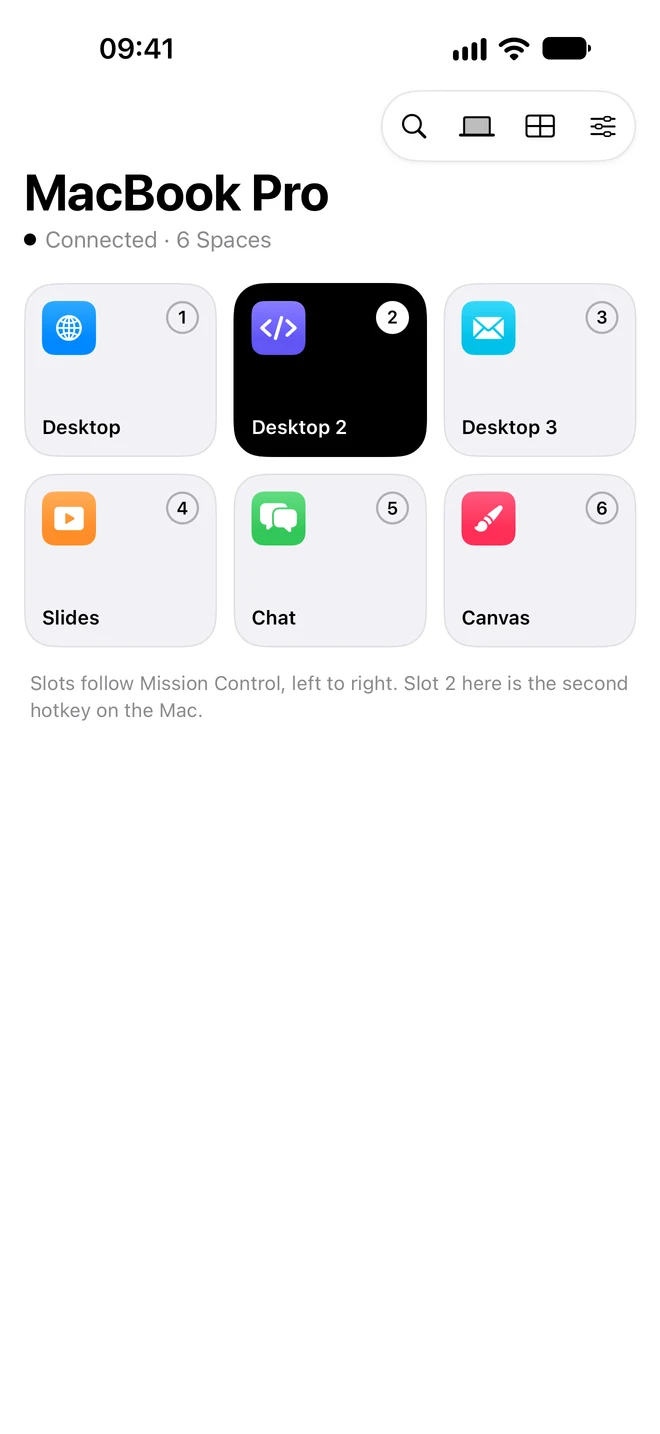
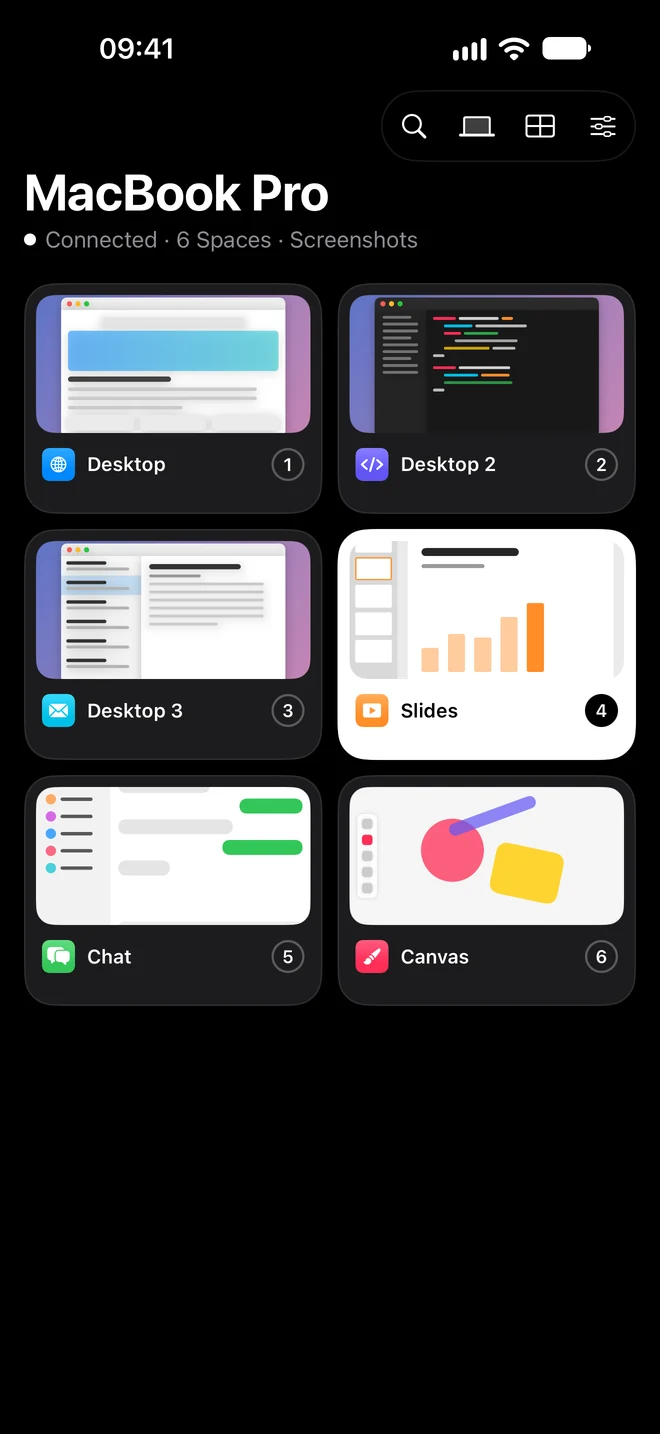
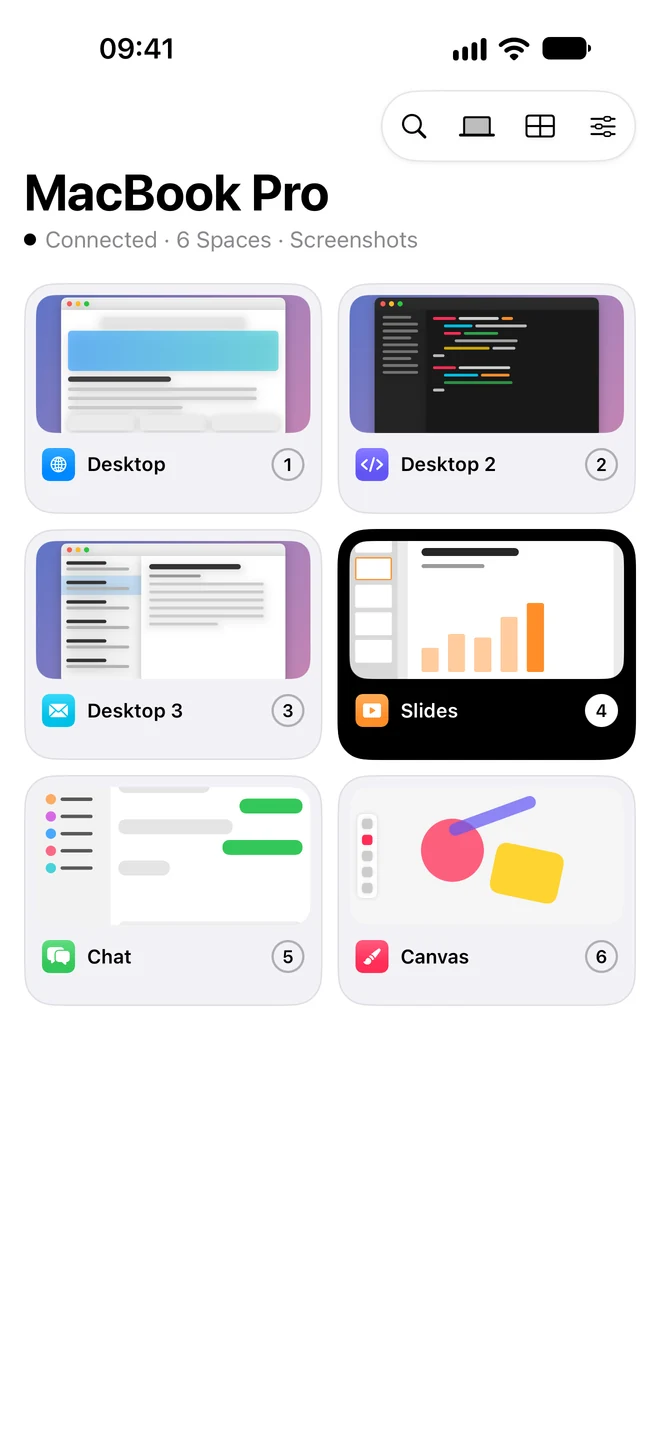
The app is a free download. The deck for one Mac is free, and so is trying it without a Mac at all.
In Mission Control order, with a number on each. Tap one and the Mac jumps there.
Pick a Space by what is in it. Screenshots stay in the phone's memory and are dropped when you leave the app.
A Mac with two monitors shows two grids, each named, and lights one tile on each.
Drag a Space on the Mac and its tile moves. Come back to the app and it reconnects on its own.
Type the six digit code, or click Leapdeck in the Mac's Dock when both are on the same Apple Account.
A sample Mac with six Spaces, so you can feel it before you install anything.
Encrypted with a key only your Mac and phone share. No account, and switching stays on your network.
It follows the system appearance and grows with Dynamic Type.
Pro puts Leapdeck where your thumb already is: the Home Screen, the Lock Screen and StandBy, Control Center, the Action Button, Siri, a Quick Switcher, desk mode and a Presenter layout, for every Mac you pair.
Pay once for Pro on up to 5 Macs and 2 iPhones paired with them. No subscription. The Mac app stays free, with every hotkey.
Widgets, the Lock Screen, Control Center, Siri, a Quick Switcher, a desk mode, a stage mode and a panic button. Pick one to see it.
Add Switch Space to Control Center, or give it to the Action Button. iOS 18 or later.
Switch Space is a Shortcuts action. Name the shortcut, and say its name to Siri.
Only the Shortcuts you allow on the Mac appear. None do until you add one.
Type a few letters of a Space's name and tap it. Return goes to the top match.
Every Space as a large tile, a display at a time. Turn the phone upright for the usual deck.
Two to four huge landscape buttons. Pick which Space each one jumps to.
Names, a Shortcut for each Space, a Quick Switcher, windows that stay on their Spaces, links, swipes and a panic key, for the Mac you sit at. Every one of them is Pro's.
Call Desktop 2 Planning. Your names show in the menu bar, the Quick Switcher, the hotkey list and on every iPhone tile. Mission Control keeps its own.
Press Command and 0, type a few letters, press Return. It matches your names, macOS's names and the app's.
Arriving on Meetings can mute and set a Focus. Give a Space one of your Shortcuts, and Leapdeck starts it once you land there, however you got there: a hotkey, your iPhone, a swipe, Mission Control or Command and Tab. Set one with the bolt beside a Space in Settings, Hotkeys.
Leapdeck remembers which Space and display each window is on, and puts windows back after a sleep, a display coming back or an app opening again. Or whenever you ask.
Shift and Return in the Quick Switcher sends the window you were in. So does a link from Raycast or a Stream Deck button, and the Move Window to Space action.
One key to the Space you just left, and again to return. Give it a hotkey or use the menu.
Keep your fingers going and you keep passing Spaces. Turn them round and you go back, without lifting.
Swipe left to reach the Space on the left, if that is how you think of them.
Anything that can open a link can switch Spaces. Ten actions for the Shortcuts app, too. Raycast, Alfred, Stream Deck and Keyboard Maestro can open the links: see the recipes.
A hotkey, a menu item, a link or your phone. It jumps to the Safe Space you chose, then runs a Shortcut you write, named Leapdeck Panic.
Your names and each Space's Shortcut in the hotkey list, your names in the menu, and the swipe, window and Panic options in General. These are the app's own windows.
20 things are Pro's, and the rest are free. Nothing that is free today moves into Pro.
Enough to stop walking through your Spaces on the Mac you sit at every day. Download it and it runs.
The power pack on the Mac, and the iPhone everywhere you are. Nothing that is free today moves into it.
Sold by Barış Çelik Pigon Teknoloji through Polar, who handles tax. Your key appears the moment you pay and stays in Polar's customer portal, linked from your receipt. Up to 5 Macs, and 2 iPhones paired with them; deactivate a Mac anytime to free its slot. 30 day refunds.
Mac direct. iPhone on the App Store. Pair once over your own network.
Menu bar, every hotkey, and windows sent to any desktop. Free.
The deck, free. Widgets, Control Center and more with Pro.
brew install --cask leapdeck-app/tap/leapdeckFree · Pro $19.99 once
Yes. Leapdeck goes straight into a full screen Space, and the hotkeys work from inside one too. Each display has its own Spaces and its own numbers: a numbered hotkey means the Space on the display your pointer is on, or, if you choose in Settings, on the main display or one monitor. The menu bar row, the pill on each screen, and your iPhone can show any Space on any display. You need a Mac on macOS 14 or later (Apple silicon or Intel) and, for the iPhone deck, iOS 17 or later on the same network as the Mac. Control Center and the Action Button on the phone need iOS 18.
Yes, with System Integrity Protection still on. Turn on the send keys in Settings, Hotkeys, and Shift with a Space's hotkey sends the window in front to that Space. The right-click menu does the same under Send Front Window to. You go with the window, or stay where you are. Hold a window by its title bar and press a hotkey, and it comes along to that desktop. With Pro, links, the Quick Switcher and a Shortcuts action send windows too, and Leapdeck puts windows back on their Spaces after a sleep, a display coming back or an app opening again. Full screen and minimized windows, and windows on every Space, stay where they are. Sending was measured on macOS 27. On a version of macOS that cannot move windows, Leapdeck says so and leaves sending off.
Switching needs Accessibility permission, once, and after that your Spaces show in the menu bar. Pairing an iPhone also asks for Local Network access. Phone screenshots, if you turn them on, ask for Screen Recording. No account, and everything else is optional.
The Mac app is free, with every hotkey, and it sends windows to another Space by hotkey or from the menu. It is not a trial and nothing that is free today moves behind a payment later. The iPhone app is a free download, and the deck for one Mac is free. Pro is one payment, not a subscription: on the Mac it adds names for your Spaces, a Shortcut of yours that starts when you arrive on a Space, a Quick Switcher, Jump Back, windows put back on their Spaces after a sleep or a display coming back, leapdeck:// links, ten Shortcuts actions, sending windows from links, Shortcuts and the Quick Switcher, long and reversed trackpad swipes, and Panic. On the iPhone it adds every Mac you own, Home Screen and Lock Screen widgets, Control Center and the Action Button, Siri and Shortcuts, running chosen Mac Shortcuts, a Quick Switcher, desk mode, Presenter layout, and Panic. With Pro, Raycast, Alfred, Stream Deck, and anything that can open a link can switch Spaces; there is no plug-in to install, and the recipes show how. See the whole table.
It is not a licence per Mac. A key from this site activates on up to 5 Macs at a time, and also unlocks up to 2 iPhones paired with those Macs. Deactivating a Mac in the app frees its slot, and forgetting that Mac on an iPhone frees the iPhone's place. Pro passes on only once: a device unlocked by another unlocks nothing further. A place held through a paired device also frees itself 30 days after that device last checked in.
The apps have no account and no analytics: your Spaces stay on your devices, and the phone talks to the Mac over your own network. The outside traffic is the Mac app's daily update check, Polar's licence check if you use a Pro key, and, while Pro is shared between an iPhone and a Mac, a small server of ours that counts which devices hold it. It keeps each device's name and a hashed id, and never the key itself. This site counts page views with software we run ourselves, with no cookie and no third party. The privacy page has the details.
Email hello@leapdeck.app within 30 days. No explanation needed. Polar refunds the card you paid with.